Wprowadzenie do API Revita
Spotkanie 1
Narzędzia i ustawianie środowiska
- Pyrevit - addon do tworzenia własnych dodatków oraz mały kombajn z narzędziami:
https://github.com/eirannejad/pyRevit/releases - RevitPythonShell - interaktywna konsola Pythona w Revicie:
https://github.com/architecture-building-systems/revitpythonshell/releases - stubs - narzędzie do autouzupełniania Revitowych komend w VS Code:
https://www.macro4bim.com/post/create-python-stubs
https://github.com/gtalarico/ironpython-stubs - RevitLookup - narzędzie do podglądania parametrów obiektów Revicie:
https://github.com/jeremytammik/RevitLookup - git - program do wersjonowania kodu i pracy w zespole, kombajn:
https://git-scm.com/
Miejsca do szukania wiedzy
- https://www.revitapidocs.com/
- https://apidocs.co/apps/revit/2021/
- https://help.autodesk.com/view/RVT/2022/ENU/?guid=Revit_API_Revit_API_Developers_Guide_html
- https://thebuildingcoder.typepad.com/
- http://wiki.theprovingground.org/revit-api
- https://dynamopythonprimer.gitbook.io/
- https://www.youtube.com/channel/UC1Dx-jGyRbvvHzZ8ZyGWF5w/playlists
- https://github.com/gtalarico/python-revit-resources
- https://github.com/architecture-building-systems/revitpythonshell
- https://github.com/Amoursol/dynamoPython
- https://daren-thomas.gitbooks.io/scripting-autodesk-revit-with-revitpythonshell/content/
Sposób czytania skryptów
#! python3- definiuje jakiego języka używa skrypt# -*- coding: utf-8 -*-- definiuje zakres znaków Unicode UTF-8 (tu też są polskie znaki)
#! python3
# -*- coding: utf-8 -*-
import xyz
import abc
from foo import bar

CONSTANT_X = 1
CONSTANT_Y = False
CONSTANT_Z = None

def something(a,b,c):
    return a,b,c

def main():
    return something(a,b,c)

if __name__ == "__main__":
    main()
pipenv
pip install --user pipenv
pipenv install requests
pipenv run python main.py
pipenv shell
Używanie bibliotek pythona
import sys
sys.path.append('sciezka/do/modulow')
API a wersje pythona
- API Dynamo - zależnie od wersji Dynamo IronPython 2.7 / python 3.8
- API RPSHELL (Python) - IronPython 2.7 / python 3.8
- API Macros - IronPython 2.7
Język statyczny i dynamiczny
Types - typy (int, float, str, Object, Enum, Element, Id):
- static types
- dynamic types
Podstawy API
Kod do skopiowania do skryptów Dynamo. NIE KOPIUJCIE TEGO, serio! :D
słowo klucz: "Maintenance"
import clr # .NET's Common Language Runtime.

# Dodawanie modułów.
import sys
sys.path.append(r'C:\Program Files (x86)\IronPython 2.7\Lib')

# Dodawanie standardowych typów
import System
from System import Array
from System.Collections.Generic import *

# Dodawanie standardowych typów Dynamo
clr.AddReference('ProtoGeometry')
from Autodesk.DesignScript.Geometry import *

# Dodawanie standardowych typów Dynamo-Revit
clr.AddReference("RevitNodes")
import Revit
clr.ImportExtensions(Revit.Elements)
clr.ImportExtensions(Revit.GeometryConversion)

# Dodanie TransactionManagera i DocumentManagera
clr.AddReference("RevitServices")
import RevitServices
from RevitServices.Persistence import DocumentManager
from RevitServices.Transactions import TransactionManager

# Dodawanie API Revita
clr.AddReference("RevitAPI")
clr.AddReference("RevitAPIUI")

import Autodesk
from Autodesk.Revit.DB import *
from Autodesk.Revit.UI import *

doc = DocumentManager.Instance.CurrentDBDocument
uiapp = DocumentManager.Instance.CurrentUIApplication
app = uiapp.Application
uidoc = uiapp.ActiveUIDocument
Co ma skarpetka wspólnego z Revitem?
jednostki
def feet_to_meter(feet):
    return feet * 0.3048


def meter_to_feet(meter):
    return meter / 0.3048


def sqr_feet_to_meter(sqrfeet):
    return sqrfeet * 0.09290304


def sqr_meter_to_feet(sqrmeter):
    return sqrmeter / 0.09290304
Inny sposób na jednostki
detail_line = UnwrapElement(IN[0])
decimal_feet_length = detail_line.GeometryCurve.Length
metric_length = UnitUtils.Convert(
    decimal_feet_length,
    DisplayUnitType.DUT_DECIMAL_FEET,
    DisplayUnitType.DUT_MILLIMETERS)
OUT = metric_length
Struktura API i przeszukiwanie
import os
import types

def walker(lib, name, relations=None, limit=2):
    relations = [["", name, lib.__doc__]] if relations is None else relations
    IGNORE = [str, int, float, complex, list, tuple, range, dict, bool, bytes]
    if limit == 0:
        return relations
    else:
        limit -= 1
    for x in dir(lib):
        if not x.startswith("_"):
            try:
                a = getattr(lib, x)
                if type(a) not in IGNORE and name not in ["OSError", "Error"]:
                    el = [name, f"{name}.{x}", a.__doc__]
                    if el not in relations:
                        relations.append(el)
                        relations = walker(a, f"{name}.{x}", relations, limit=limit)
            except:
                pass
    return relations

##############################################################
import plotly.graph_objects as go
import plotly

relations = walker(plotly, "plotly")
parents, labels, helps = zip(*relations)

fig = go.Figure(
    go.Treemap(
        labels=labels,
        parents=parents,
        # values = helps,
    )
)

fig.update_layout(margin=dict(t=50, l=25, r=25, b=25))
plotly.offline.plot(fig, filename="./index.html")
fig.show()
Podstawowe klasy
Element.*
ArePhasesModifiable
AssemblyInstanceId
BoundingBox
CanBeHidden
CanBeLocked
CanDeleteSubelement
CanHaveAnalyticalModel
CanHaveTypeAssigned
Category
ChangeTypeId
CreatedPhaseId
DeleteEntity
DeleteSubelement
DeleteSubelements
DemolishedPhaseId
DesignOption
Dispose
Document
Equals
Geometry
GetAnalyticalModel
GetAnalyticalModelId
GetChangeTypeAny
GetChangeTypeElementAddition
GetChangeTypeElementDeletion
GetChangeTypeGeometry
GetChangeTypeParameter
GetDependentElements
GetEntity
GetEntitySchemaGuids
GetExternalFileReference
GetExternalResourceReference
GetExternalResourceReferences
GetGeneratingElementIds
GetGeometryObjectFromReference
GetHashCode
GetMaterialArea
GetMaterialIds
GetMaterialVolume
GetMonitoredLinkElementIds
GetMonitoredLocalElementIds
GetOrderedParameters
GetParameterFormatOptions
GetParameters
GetPhaseStatus
GetSubelements
GetType
GetTypeId
GetValidTypes
GroupId
HasPhases
Id
IsExternalFileReference
IsHidden
IsMonitoringLinkElement
IsMonitoringLocalElement
IsPhaseCreatedValid
IsPhaseDemolishedValid
IsTransient
IsValidObject
IsValidType
LevelId
Location
LookupParameter
MemberwiseClone
Name
OwnerViewId
Parameter
Parameters
ParametersMap
Pinned
ReferenceEquals
RefersToExternalResourceReference
RefersToExternalResourceReferences
ReleaseUnmanagedResources
SetEntity
ToString
UniqueId
VersionGuid
ViewSpecific
WorksetId
getBoundingBox
setElementType
Podstawowe klasy
Wall.*
ArePhasesModifiable
AssemblyInstanceId
BoundingBox
CanBeHidden
CanBeLocked
CanDeleteSubelement
CanHaveAnalyticalModel
CanHaveTypeAssigned
Category
ChangeTypeId
Create
CreatedPhaseId
CurtainGrid
DeleteEntity
DeleteSubelement
DeleteSubelements
DemolishedPhaseId
DesignOption
Dispose
Document
Equals
FindInserts
Flip
Flipped
Geometry
GetAnalyticalModel
GetAnalyticalModelId
GetChangeTypeAny
GetChangeTypeElementAddition
GetChangeTypeElementDeletion
GetChangeTypeGeometry
GetChangeTypeParameter
GetDependentElements
GetEntity
GetEntitySchemaGuids
GetExternalFileReference
GetExternalResourceReference
GetExternalResourceReferences
GetGeneratingElementIds
GetGeometryObjectFromReference
GetHashCode
GetMaterialArea
GetMaterialIds
GetMaterialVolume
GetMonitoredLinkElementIds
GetMonitoredLocalElementIds
GetOrderedParameters
GetParameterFormatOptions
GetParameters
GetPhaseStatus
GetStackedWallMemberIds
GetSubelements
GetType
GetTypeId
GetValidTypes
GroupId
HasPhases
Id
IsExternalFileReference
IsHidden
IsMonitoringLinkElement
IsMonitoringLocalElement
IsPhaseCreatedValid
IsPhaseDemolishedValid
IsStackedWall
IsStackedWallMember
IsTransient
IsValidObject
IsValidType
LevelId
Location
LookupParameter
MemberwiseClone
Name
Orientation
OwnerViewId
Parameter
Parameters
ParametersMap
Pinned
ReferenceEquals
RefersToExternalResourceReference
RefersToExternalResourceReferences
ReleaseUnmanagedResources
SetEntity
StackedWallOwnerId
StructuralUsage
ToString
UniqueId
VersionGuid
ViewSpecific
WallType
Width
WorksetId
getBoundingBox
setElementType
Pyrevit
- możliwości
- tworzenie interfejsu do skryptu
- ustawianie addinów pod firmę (pipeline developera)
Pyrevit

- Tab coloring - koloruje wam zakładki wg otwartych projektów i rodzin. Minify revit UI - chowa wam górne zakładki których nie używacie np mi zostawia tylko Architecture, Annotate i Modify ( ustawia się to, klikając na ikonkę z SHIFTEM)
- Sync Views - synchronizuje widoki np jak zmieniasz często rzuty (np. sprawdzając szachty) to mając włączoną tą opcję zawsze widok ląduje w tym samym miejscu co na poprzednim rzucie (resetuje się np w momencie wejścia na widok 3d)
- Zaawansowane zaznaczanie - działa jak Pamięć w kalkulatorze: zaznaczasz parę obiektów dodajesz do pamięci, zaznaczasz inne dodajesz do pamięci. potem jak klikniesz MRead to zaznaczone zostaną wszystkie poprzednio zaznaczone elementy
- Make Pattern - szybko możesz tworzyć szrafurę np trawy, kostki, wzór płytek itp.
- Sheets - dla mnie najwygodniejsze jest kopiowanie legend na inne rysunki (PB, PW - na jednym rysunku ustawiasz powtarzające się legendy a potem kopiujesz je na wszystkie inne rysunki i wklejają się w tym samym miejscu) Druga to Batch Sheet Maker - na szybko generuje dużo rysunków wpisujesz tylko nr rysunku [tab] nazwa rysunku i masz rysunek ( ja do PW mam w pliku tekstowym zestaw rysunków które przeklejam do tego narzędzia na etapie PW i od razu mam przygotowane puste rysunki z numerami i nazwami.
- Dużo ułatwień w tym miejscu, najfajniejsze to chyba Kopiowanie view templates do innych otwartych plików.
- Preflight Checks - moje ulubione narzędzie pokazuje w ładnej graficznej formie "kondycję" twojego revitowego pliku i co może być do poprawy.
- Team - ważna rzecz do sprawdzania: Who did that? kto stworzył element i kto ostatni go edytował.
- Czyszczenie rzeczy które czasami jest zbyt dobre, ale przynajmniej potrafi wyczyścić elementy których nie czyści purge.
Pyrevit
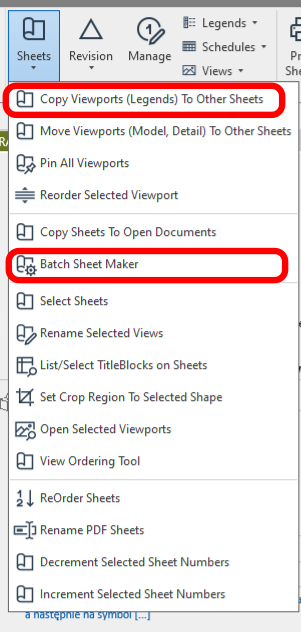
- Sheets - dla mnie najwygodniejsze jest kopiowanie legend na inne rysunki (PB, PW - na jednym rysunku ustawiasz powtarzające się legendy a potem kopiujesz je na wszystkie inne rysunki i wklejają się w tym samym miejscu) Druga to Batch Sheet Maker - na szybko generuje dużo rysunków wpisujesz tylko nr rysunku [tab] nazwa rysunku i masz rysunek ( ja do PW mam w pliku tekstowym zestaw rysunków które przeklejam do tego narzędzia na etapie PW i od razu mam przygotowane puste rysunki z numerami i nazwami.
Pyrevit
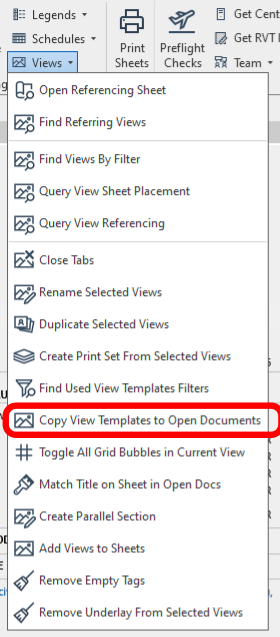
- Dużo ułatwień w tym miejscu, najfajniejsze to chyba Kopiowanie view templates do innych otwartych plików.
Pyrevit
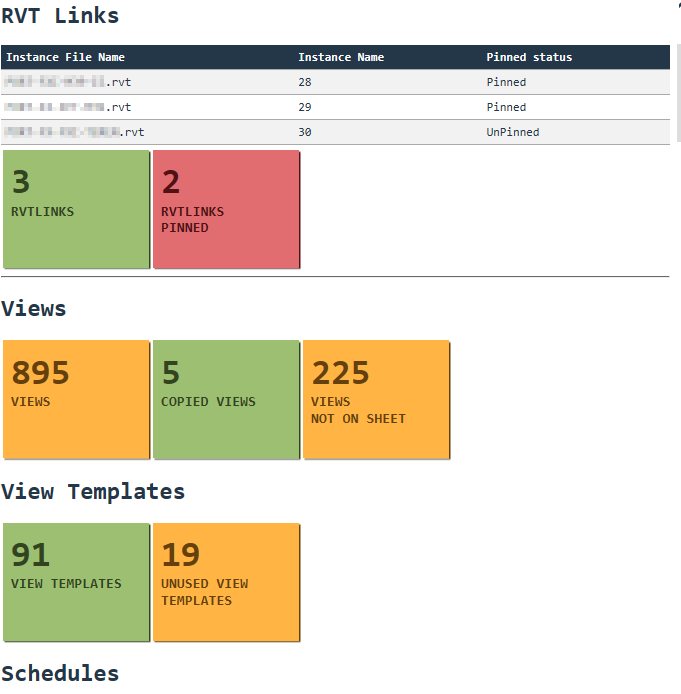
- Preflight Checks - moje ulubione narzędzie pokazuje w ładnej graficznej formie "kondycję" twojego revitowego pliku i co może być do poprawy.
Pyrevit
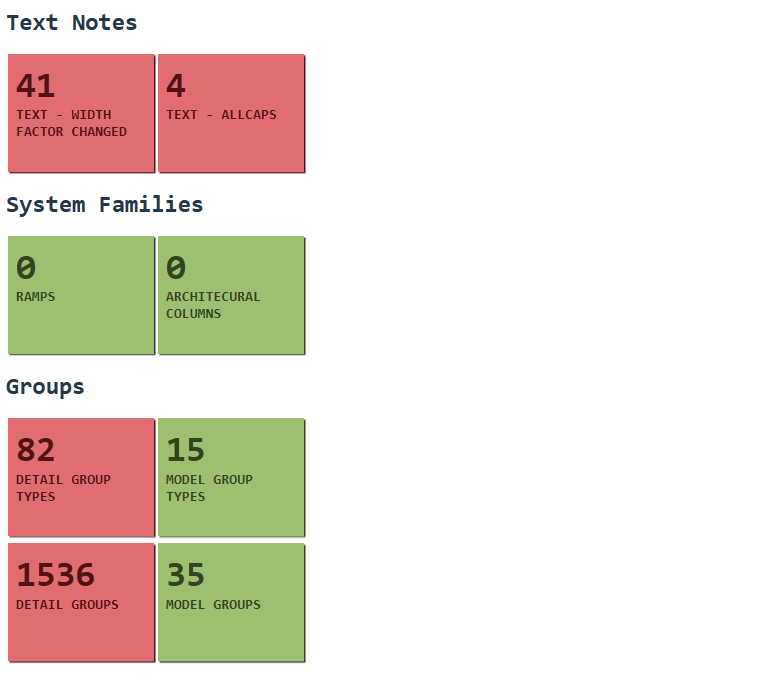
- Preflight Checks - moje ulubione narzędzie pokazuje w ładnej graficznej formie "kondycję" twojego revitowego pliku i co może być do poprawy.
Pyrevit
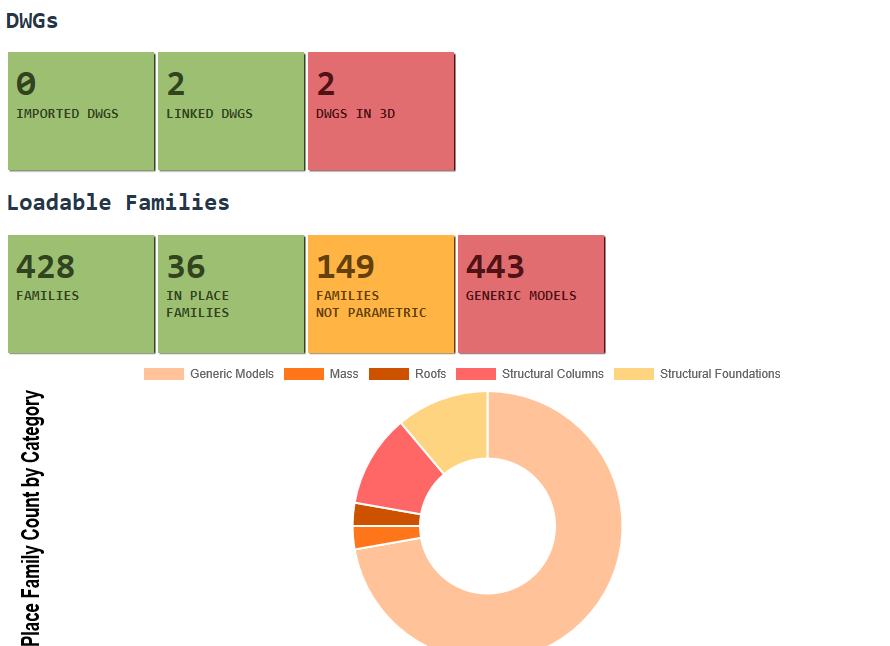
- Preflight Checks - moje ulubione narzędzie pokazuje w ładnej graficznej formie "kondycję" twojego revitowego pliku i co może być do poprawy.
Pyrevit
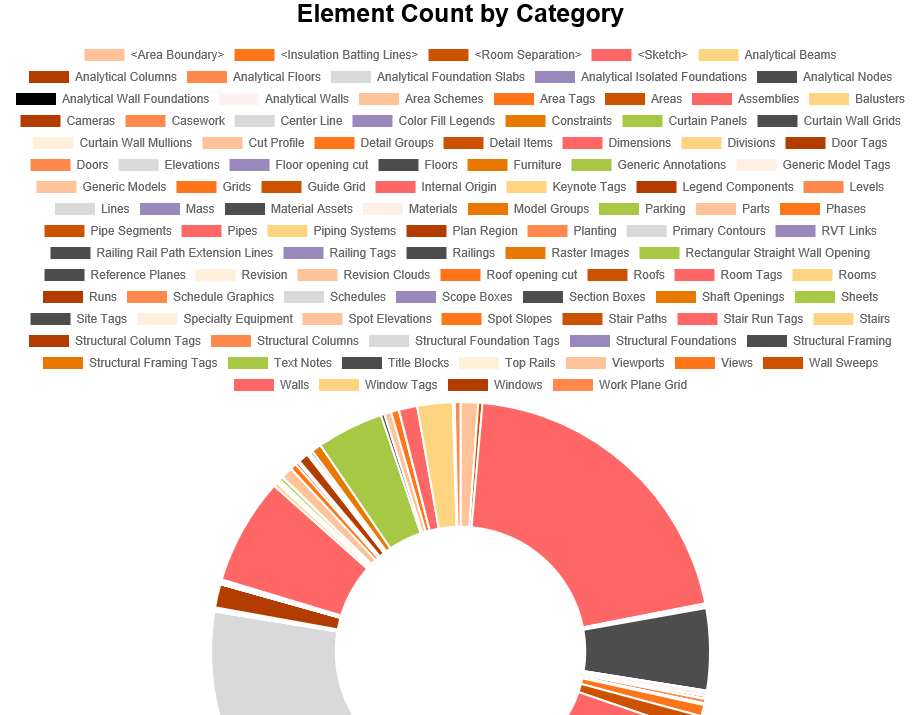
- Preflight Checks - moje ulubione narzędzie pokazuje w ładnej graficznej formie "kondycję" twojego revitowego pliku i co może być do poprawy.
Pyrevit
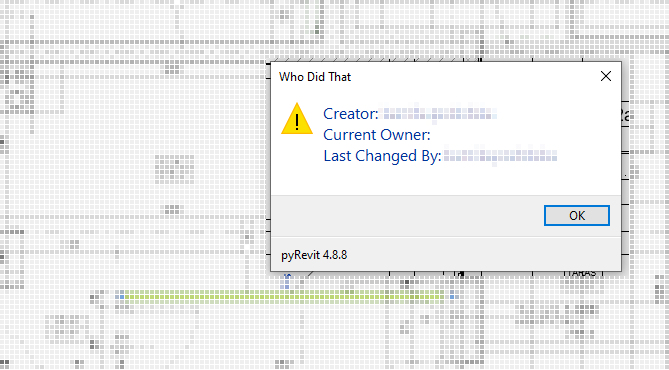
- Team - ważna rzecz do sprawdzania: Who did that? kto stworzył element i kto ostatni go edytował.
Spotkanie 2
Klasy
Czym są klasy i ich dziedziczenie
class Osoba():
    def __init__(self, wiek, wysokosc):
        self.wiek = wiek
        self.wysokosc = wysokosc
        self.smierc = None
        self.martwy = False

    def umarl(self):
        self.smierc = self.wiek
        self.martwy = True


class Kobieta(Osoba):
    def __init__(self, wiek, wysokosc):
        super().__init__(wiek, wysokosc)
        self.dzieci = None
        self.ulubione_ksiazki = []


class Pilotka(Kobieta):
    def __init__(self, wiek, wysokosc, doswiadczenie):
        super().__init__(wiek, wysokosc)
        self.doswiadczenie = doswiadczenie
        self.w_powietrzu = False

    def startuje(self):
        self.w_powietrzu = True
Pomocne biblioteki Pythona
- math
- itertools
- collections.namedtuple
- pandas
- numpy
- bokeh / plotly
- pillow
- k3d
Dynamo
- UnwrapElement
- Transaction a TransactionGroup a TransactionManager
- uidoc.Selection
- próba wyjaśnienia różnic (importowane biblioteki).
import clr

clr.AddReference("RevitAPI")
Autodesk.Revit.DB.Level

clr.AddReference("RevitNodes")
import Revit
clr.ImportExtensions(Revit.Elements)
clr.ImportExtensions(Revit.GeometryConversion)
Revit.Elements.Level
Dynamo IN-OUT
input_list_of_numbers = IN[0] #Here we take an input
output_list_of_numbers = [] #We create an empty list to output

for number in input_list_of_numbers: #Looping through input
    new_number = number + 1 #Adding 1 to each number
    output_list_of_numbers.append(new_number)

OUT = output_list_of_numbers #Here we output the new '+1' list
Revit Python Shell
Interaktywna zabawa
FilteredElementCollector
# Uwaga: filtry dopisują się do kolektora, więc każde zapytanie zaczyna od nowego.

# Kategoria
meble_collector = FilteredElementCollector(doc).OfCategory(BuiltInCategory.OST_Furniture)

# Klasa
sciany_collector = FilteredElementCollector(doc).OfClass(Wall)

# typ czy rzeczywisty obiekt
typy_scian = FilteredElementCollector(doc).OfCategory(BuiltInCategory.OST_Walls).WhereElementIsElementType()
sciany_iterator = FilteredElementCollector(doc).OfCategory(BuiltInCategory.OST_Walls).WhereElementIsNotElementType()

# zamiana z zapytania na listę obiektów
sciany = sciany_iterator.ToElements()

# przykładowy jednolinijkowiec
meble = (FilteredElementCollector(doc)
                 .OfCategory(BuiltInCategory.OST_Furniture)
                 .WhereElementIsNotElementType()
                 .ToElements()
                 )

OUT = meble
uidoc.Selection
import clr

clr.AddReference("RevitAPI")

from Autodesk.Revit.DB import (
    ElementId,
)

clr.AddReference("System")
from System.Collections.Generic import List

uidoc = __revit__.ActiveUIDocument  # type: ignore
doc = __revit__.ActiveUIDocument.Document  # type: ignore


def select(elements, by_id=False, uidoc=uidoc):
    """select elements in view"""
    elements_by_id = []
    if not by_id:
        for el in elements:
            elements_by_id.append(el.Id)
    else:
        elements_by_id = elements
    Icollection = List[ElementId](elements_by_id)
    uidoc.Selection.SetElementIds(Icollection)
Filtrowanie + zaznaczanie
Skrypt do wybierania elementów i zaznaczania ich w modelu
import clr

clr.AddReference("RevitAPI")

from Autodesk.Revit.DB import (
    ElementId,
    FilteredElementCollector,
    BuiltInCategory,
)

clr.AddReference("System")
from System.Collections.Generic import List

# Dodanie TransactionManagera i DocumentManagera
clr.AddReference("RevitServices")
import RevitServices
from RevitServices.Persistence import DocumentManager

doc = DocumentManager.Instance.CurrentDBDocument
uidoc = DocumentManager.Instance.CurrentUIApplication.ActiveUIDocument

def select(elements, by_id=False, uidoc=uidoc):
    """select elements in view"""
    elements_by_id = []
    if not by_id:
        for el in elements:
            elements_by_id.append(el.Id)
    else:
        elements_by_id = elements
    Icollection = List[ElementId](elements_by_id)
    uidoc.Selection.SetElementIds(Icollection)

# przykładowy jednolinijkowiec
walls = ( FilteredElementCollector(doc)
            .OfCategory(BuiltInCategory.OST_Walls)
            .WhereElementIsNotElementType()
            .ToElements()
)

wybrane = []
for wall in walls:
    if "gk" in wall.Category.Name.lower():
        wybrane.append(wall)

select(wybrane)
Spotkanie 3
Transaction
Jak działa wprowadzanie zmian w modelu. Są trzy typy transakcji:
- Transaction
- TransactionGroup
- TransactionManager - Dynamo
TransactionManager - Dynamo
TransactionManager.Instance.EnsureInTransaction(doc)
zrob_cos()
TransactionManager.Instance.TransactionTaskDone()
Transaction
t = Transaction(doc, 'Opis')
t.Start()
try:
    zrob_cos()
except:
    t.RollBack()
else:
    t.Commit()
TransactionGroup
tg = TransactionGroup(doc, "{} number assign".format(el_type))
tg.Start()

t = Transaction(doc, "Zmiana 1")
t.Start()
zrob_zmiana1()
t.Commit()

zrob_cos_innego()

t2 = Transaction(doc, "Zmiana 2")
t2.Start()
zrob_zmiana2()
t2.Commit()

# Scalanie dwóch transakcji
tg.Assimilate()
Parametry
import clr

clr.AddReference("RevitServices")
from RevitServices.Persistence import DocumentManager

clr.AddReference("RevitAPI")
from Autodesk.Revit.DB import (
  Transaction,
  UnitUtils,
  DisplayUnitType
)

doc = DocumentManager.Instance.CurrentDBDocument


wall = s0 # type: ignore
# parametr, który jest liczbą
base_offset = wall.LookupParameter('Base Offset')
base_offset.AsDouble()      # 0.16404199475065617
base_offset.AsInteger()     # 0
base_offset.AsValueString() # '5.00'
base_offset.DisplayUnitType # Autodesk.Revit.DB.DisplayUnitType.DUT_CENTIMETERS
base_offset_cm = UnitUtils.Convert(
  base_offset.AsDouble(),
  DisplayUnitType.DUT_DECIMAL_FEET,
  DisplayUnitType.DUT_CENTIMETERS)   # 5.0


# parametr jako inny obiekt
base = wall.LookupParameter('Base Constraint')
base.AsDouble()      # 0.0
base.AsValueString() # '01-Pietro_Konstrukcja'
base.AsElementId()   # <Autodesk.Revit.DB.ElementId [221444]>
level = doc.GetElement(base.AsElementId()) # <[Autodesk.Revit.DB.Level]>
level.Name # '01-Pietro_Konstrukcja'
level.Elevation # 9.1371391076115476
level.LookupParameter('kolejny parametr')
# i tak dalej i tak dalej
Rodzaje parametrów
- String [str]
Nazwa Budynku - Double [float]
3.14 - Integer [int]
2345 - Element - inny obiekt Revitowy (Level)
- BuiltInParameter
ParameterMap
Jak wyciągnąć informacje o parametrach
import clr

clr.AddReference("RevitServices")
from RevitServices.Persistence import DocumentManager

clr.AddReference("RevitAPI")
from Autodesk.Revit.DB import (
  Transaction,
  UnitUtils,
  DisplayUnitType
)

doc = DocumentManager.Instance.CurrentDBDocument


wall = s0 # type: ignore

nazwy_parametrow = [x.Definition.Name for x in wall.ParametersMap]
nazwy_parametrow_rozszerzone = [x.Definition.Name for x in wall.Parameters]
# Różnice:
#   Type
#   Family
#   Type Name
#   Category
#   Design Option
#   Family and Type
#   Type Id
#   Family Name
#   Category
Spotkanie 4
Własna zakładka w Revicie

Przykład od większego kolegi z branży
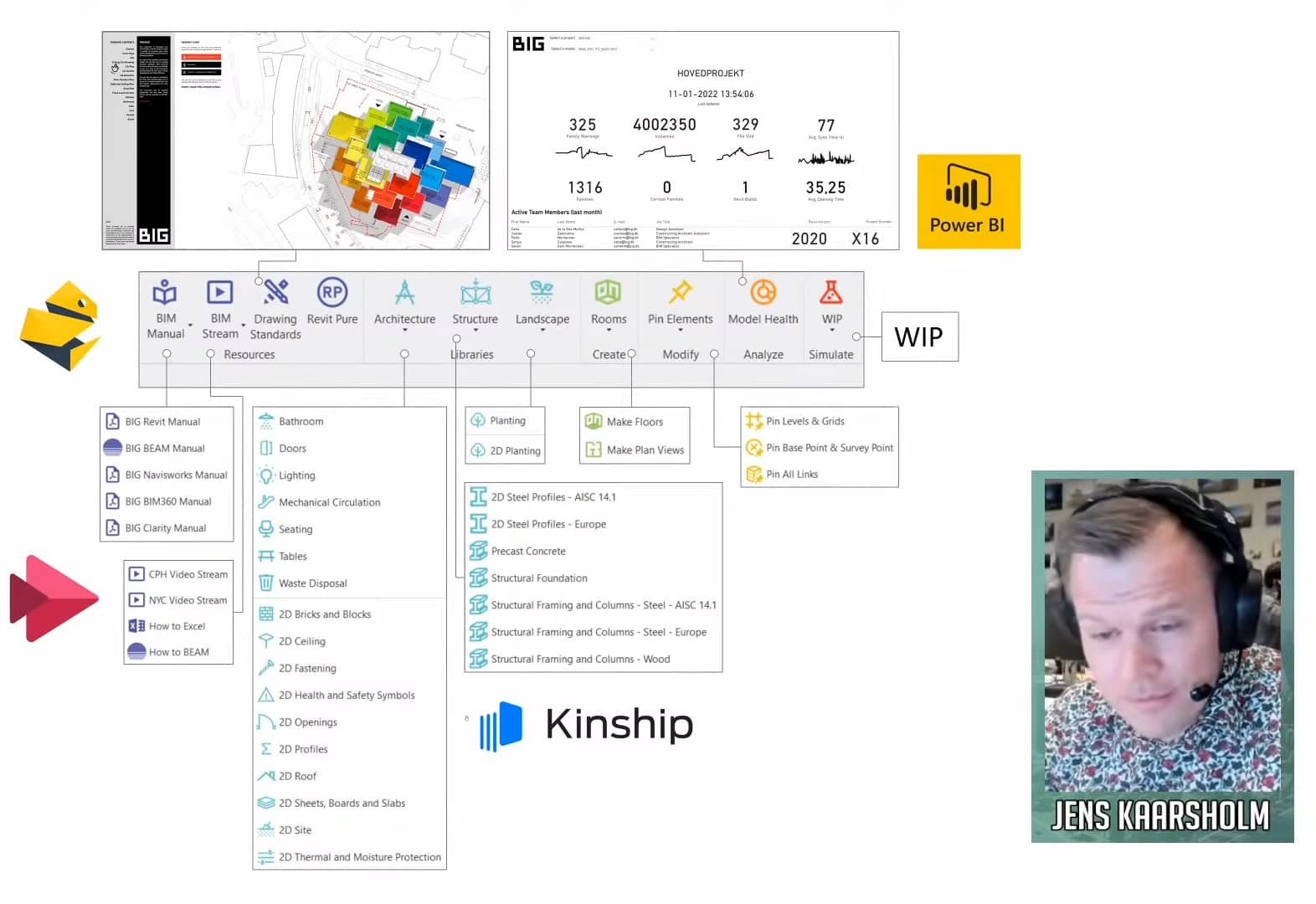
Struktura folderów
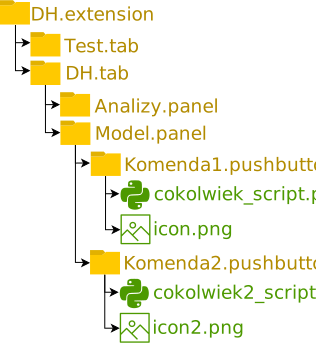
Szybkie uruchamianie
Spotkanie 5
Views
- View
- FloorView
- Viewport
ViewTemplates
Linked documents
def elementy_z_linku(doc):
    elements = []
    lnks = FilteredElementCollector(doc).OfClass(RevitLinkInstance)
    for i in lnks:
        name = i.Name.split(".rvt")[0]
        if name.endswith("IS"):  # filtrujemy linki, żeby znaleźć właściwy
            doclnk = i.GetLinkDocument()
            coll = (
                FilteredElementCollector(doclnk)
                .OfCategory(BuiltInCategory.OST_GenericModel)
                .WhereElementIsNotElementType()
                .ToElements()
            )
            for x in coll:
                if x.Symbol.FamilyName.startswith("Nazwa"):
                    lvl = doclnk.GetElement(x.LevelId)
                    elements.append((x, lvl.Name))
    return elements
Wymiarowanie
import clr
clr.AddReference("RevitAPI")
from Autodesk.Revit.DB import (
    FilteredElementCollector,
    Transaction,
    XYZ,
    Line,
    Reference,
    ReferenceArray,
)


el, grid = selection
p = el.GeometryCurve.GetEndPoint(0)
p_ref = el.GeometryCurve.GetEndPointReference(0)
proj = grid.Curve.Project(p)
gr_ref = Reference(grid)

# Tworzenie wymiaru
direction = grid.Curve.Direction
p1 = XYZ(p.X, p.Y, 0).Add(direction.Multiply(0.5))
p2 = proj.XYZPoint.Add(direction.Multiply(0.5))
dimline = Line.CreateBound(p1, p2) # stworzyliśmy prostopadłą
# dimline = dimline.CreateOffset(100, dimline.Direction)

refarr = ReferenceArray()
refarr.Append(p_ref)
refarr.Append(gr_ref)

t = Transaction(doc, 'DEV wymiar')
t.Start()
dim = doc.Create.NewDimension(doc.ActiveView, dimline, refarr)
t.Commit()
Spotkanie 6
Porównywanie
x == y
Porównywanie elementów ze sobą jest proste w przypadku booleans i liczb całkowitych.
Problem zaczyna się przy zmiennoprzecinkowych float, czyli większości rzeczy w geometrii 3D i Revicie.
- Działające porównania:
- True == False
- 1 == 2
- Niedziałające np. 2.5 == 2.4 + 0.1
W praktyce najczęściej 2.5 == 2.5 będzie się zgadzać i będzie dawać wynik pozytywny.
Komputer floaty zawsze trzyma w zaokrągleniu, dlatego czasem przy działaniach okazuje się, że poprawne jest takie równanie:
0.1 - 0.01 = 0.0900000000000000003
Dlatego najczęściej przy porównywaniu liczb zmiennoprzecinkowych lub wektorów lub punktów warto dodać tzw. epsilon.
e = 0.0001 # do jakiego zaokrąglenia ma uważać liczby za równe
x = 0.1 - 0.01
y = 0.09

def rowne(x, y, e=e):
    return abs(x - y) < e  # abs - czyli wartość bezwzględna

rowne(x, y)  # True
Praca wspólna
Narysuj ścianę
import clr

clr.AddReference("RevitServices")
import RevitServices
from RevitServices.Persistence import DocumentManager
from RevitServices.Transactions import TransactionManager

clr.AddReference("RevitAPI")
from Autodesk import Revit
from Autodesk.Revit import DB, UI
from Autodesk.Revit.DB import (
    Wall,
    Document,
    Transaction
)

# uidoc = DocumentManager.Instance.CurrentUIApplication.ActiveUIDocument
# doc = DocumentManager.Instance.CurrentDBDocument
uidoc = __revit__.ActiveUIDocument # type: ignore
doc = __revit__.ActiveUIDocument.Document # type: ignore

t = Transaction(doc, 'Create Wall')
t.Start()
try:
    Wall.Create(doc, curve, walltypeid, levelid, height, offset, flip, structural)
except:
    t.RollBack()
else:
    t.Commit()
Modyfikuj parametry ściany
import clr

clr.AddReference("RevitServices")
from RevitServices.Persistence import DocumentManager

clr.AddReference("RevitAPI")
from Autodesk.Revit.DB import (
    Transaction,
    UnitUtils,
    DisplayUnitType
)

doc = DocumentManager.Instance.CurrentDBDocument

wall = s0 # type: ignore
# parametr, który jest liczbą
base_offset = wall.LookupParameter('Base Offset')
new_offset = UnitUtils.Convert(
    15,
    DisplayUnitType.DUT_CENTIMETERS,
    DisplayUnitType.DUT_DECIMAL_FEET)


t = Transaction(doc, 'Modify wall parameter')
t.Start()
try:
    # base_offset.SetValueString('15')
    base_offset.Set(new_offset)
except ValueError:
    t.RollBack()
else:
    t.Commit()
Zbierz dane ze ścian
import clr

clr.AddReference("RevitServices")
from RevitServices.Persistence import DocumentManager

clr.AddReference("RevitAPI")
from Autodesk.Revit.DB import (
    BuiltInCategory,
    FilteredElementCollector
)

doc = DocumentManager.Instance.CurrentDBDocument

# 1. jedna opcja to użyć zaznaczenia w shellu czyli "selection"
walls = selection # type: ignore

# 2. drugą opcją jest wyfiltrowanie wszystkich ścian
walls = ( FilteredElementCollector(doc)
            .OfCategory(BuiltInCategory.OST_Walls)
            .WhereElementIsNotElementType()
            .ToElements()
)

# kontenery, do których zbieramy dane
powierzchnie = {}
suma = 0

# pętla przechodząca przez każdą ścianę
for wall in walls:
    typ = wall.LookupParameter("Family and Type").AsValueString()
    pow_feet = wall.LookupParameter("Area").AsDouble()
    pow_m = sqr_feet_to_meter(pow_feet)  # funkcja ze slajdu o jednostkach
    suma += pow_m
    if powierzchnie.get(typ):
        powierzchnie[typ] += pow_m
    else:
        powierzchnie[typ] = pow_m

# drukowanie wyników
for typ, pow in powierzchnie.items():
    print('{}: {}m2'.format(typ,pow))

print('Powierzchnia całkowita: {}m2'.format(suma))
Wstaw rodzinę
from Autodesk.Revit.DB import (
    FilteredElementCollector,
    FamilySymbol,
    BuiltInCategory,
    Structure,
    Transaction,
    XYZ,
)

wszystkie_rodziny_drzwi = (FilteredElementCollector(doc)
.OfClass(FamilySymbol)
.OfCategory(BuiltInCategory.OST_Doors)
.ToElements())

family_symbol = wszystkie_rodziny_drzwi[0]  # wybieramy pierwszą lepszą
active_view = doc.ActiveView
level = doc.GetElement(active_view.LevelId)

location = XYZ(0,0,0)
structural = Structure.StructuralType.NonStructural

t = Transaction(doc, 'Wstaw rodzinę')
t.Start()
if not family_symbol.IsActive:
    family_symbol.Activate()  # nieużywany typ trzeba najpierw aktywować
# dla zwykłych rodzin: punkt, typ, poziom, rodzaj konstrukcji
nowy_obiekt = doc.Create.NewFamilyInstance(location, family_symbol, level, structural)
# dla rodzin hostowych (np. drzwi w ścianie): punkt, typ, host, poziom, rodzaj
# doc.Create.NewFamilyInstance(location, family_symbol, host, level, structural)
# dla rodzin liniowych: krzywa zamiast punktu
# doc.Create.NewFamilyInstance(curve, family_symbol, level, structural)
t.Commit()
Wymiaruj osie
import clr

clr.AddReference("RevitAPI")
from Autodesk.Revit.DB import (
    FilteredElementCollector,
    Grid,
    Transaction,
    ReferenceArray,
    Reference,
    Line,
    XYZ,
)

uidoc = __revit__.ActiveUIDocument  # type: ignore
doc = __revit__.ActiveUIDocument.Document  # type: ignore

# tutaj jest przykład, gdzie dzielę jedno wyrażenie
# na wiele linii, zamykając je w nawiasach
osie = ( FilteredElementCollector(doc)
    .OfClass(Grid)
    .WhereElementIsNotElementType()
    .ToElements()
)

# chcemy podzielić osie na grupy osi równoległych do siebie
grupy = {}
for os in osie:
    direction = os.Curve.Direction.ToString()  # "XYZ(-1,0,0)"
    negate =    os.Curve.Direction.Negate().ToString() # "XYZ(1,0,0)"

    # będziemy używać Direction jako klucza, po którym grupujemy
    if grupy.get(direction):
        grupy[direction] += [os]
    elif grupy.get(negate):
        grupy[negate] += [os]
    else:
        grupy[direction] = [os]

t = Transaction(doc, 'wymiarowanie osi')
t.Start()
for k, osie in grupy.items():
    if len(osie) > 1:
        os1 = osie[0]
        os2 = osie[1]
        p1 = os1.Curve.GetEndPoint(0)
        p1 = XYZ(p1.X, p1.Y, 0)
        p2 = os2.Curve.Project(p1).XYZPoint

        dimline = Line.CreateBound(p1,p2)

        refarr = ReferenceArray()
        for os in osie:
            ref = Reference(os)
            refarr.Append(ref)

        dim = doc.Create.NewDimension(doc.ActiveView, dimline, refarr)

t.Commit()